TL;DR: Elementor MCP connects Codex with supported Elementor tools, allowing you to request page changes in plain language. It can help with page content, layout and internal links. However, metadata, schema, redirects and third-party forms may need separate tools or plugin access. Check what your connection supports before asking it to change your site.
Introduction
A small WordPress job rarely stays small. You open the editor to change a heading, then notice a broken link, awkward spacing or an outdated service description.
What if you could describe those changes and have an assistant work directly with the page?
That is the appeal of using Elementor MCP for SEO with Codex. The connection can help turn a clear instruction into a website edit. But understanding its limits matters just as much as knowing what to ask.
This guide explains where it fits, how to get started and which checks still need your attention.
Table of Contents
- What Is Elementor MCP, and Where Does Codex Fit?
- Can You Use Elementor MCP for SEO?
- How to Connect Elementor MCP to Codex
- Five Practical Ways I Use Codex in My WordPress SEO Workflow
- How to Write a Prompt That Produces a Useful Edit
- What Should You Check Before Publishing?
- Frequently Asked Questions
- Where Should You Start?
What Is Elementor MCP, and Where Does Codex Fit?
MCP stands for Model Context Protocol. It gives applications a standard way to connect with external tools and information.
In this setup, Elementor provides supported website tools. Codex interprets your request and can use those tools through an authorised connection. Instead of explaining every click, you describe the page, the problem and the result you want.
For example, you could ask for a service section to follow an existing design. A useful brief would name the reference page, include approved copy and explain the expected mobile layout.
There is an important compatibility detail. Elementor’s MCP documentation currently identifies V4 Atomic layouts as the supported editing structure. Older V3 Widget layouts are not yet supported by that native editing capability.
Therefore, an existing page containing older widgets or custom HTML may need a different editing route. A working connection does not mean every part of your website is editable through Elementor MCP.
Can You Use Elementor MCP for SEO?
Yes, as part of a wider WordPress workflow. It is useful when SEO recommendations involve supported page content or structure.
However, an SEO audit covers more than the page builder. Search visibility, redirects, canonical URLs and plugin settings live in different places. Codex needs the appropriate access for each task.
| Task | Where the work happens |
|---|---|
| Page copy, layout and supported elements | Elementor tools, where the page structure is supported |
| SEO titles, schema and redirects | An SEO plugin, another connected tool or an authorised browser workflow |
| Indexing and search performance | Search Console and other relevant reporting tools |
| Form delivery and notifications | The form plugin and a real submission test |
Think about the job first. Then check which tool can actually perform it. My guide to digital marketing tools explains why different tools answer different questions.
How to Connect Elementor MCP to Codex
Start with a backed-up website and an updated, compatible installation. For your first experiment, use a draft page or staging site.
Elementor’s build and edit guide lists the current requirements. Check those against your installation, including any Pro features you intend to use.
The official connection process follows these steps:
- Open WordPress and go to Elementor → Elementor MCP.
- Enable MCP access and choose Codex as the connected tool.
- Review the application-password notice, then generate the connection prompt.
- Copy that prompt into Codex and follow the connection instructions.
- Ask Codex to inspect a page and confirm which tools are available.
Keep the generated prompt private because it includes connection credentials. The connected tool operates within the authorising WordPress user’s permissions.
If the connection fails, check the current setup guide and your installation before changing page content. Connection troubleshooting and SEO editing are separate jobs.
Five Practical Ways I Use Codex in My WordPress SEO Workflow
On faiyz.com, I started with jobs I already needed to finish. That made it easier to judge whether Codex was actually useful.
The work involved Elementor MCP, browser access and WordPress plugins, depending on the task. Here are five practical examples from my own website.
1. Building My Consultation Page From an Existing Design
I wanted a complete digital marketing consultation page, but I already had a service-page design I liked. My instruction was simple: follow that layout and change the content.
Codex helped turn the brief into page copy, headings, pricing information and enquiry options. I kept my free first call and detailed consultations starting from AED 100.
However, the first version still needed my attention. I noticed two sections had moved to the centre, so I asked Codex to correct their alignment.
That small correction explains how I use it. I give it a clear reference, review the result and ask for specific changes.

2. Reviewing My Schema and Google Business Profile Details
Schema was one of the areas I wanted help checking across my website. I asked Codex to review the markup, make the necessary changes and check the output.
At first, Google’s Rich Results Test showed “No items detected”. Naturally, I thought something was missing. The useful lesson was that this test doesn’t report every Schema.org type.
I therefore checked the markup with the Schema.org validator too. As Google’s testing guidance explains, these tools answer different questions: whether the markup is valid, and whether Google detects a supported rich-result type.
Later, I shared my public Google Business Profile link so Codex could connect the correct business details. I also made one requirement clear: my business serves a service area, so my private address must stay hidden.
For me, this made schema work easier to follow. Still, valid markup doesn’t guarantee a rich result, and I check it again after relevant site changes.
3. Turning My SEO Audit Into a Contact Form Fix
I also asked for a site-wide SEO audit. The review covered 23 distinct live pages and 39 historical URLs from Search Console.
Rather than trying to tackle every finding at once, I chose the Contact form first. I had already tested my homepage form manually, and it worked through Fluent Forms.
My request was to reuse that same form on the Contact page. Codex replaced the disconnected form and checked how the replacement loaded and appeared on mobile.
There was still one separate check to make: send a fresh enquiry through Contact and confirm delivery. Loading correctly doesn’t prove an email reaches my inbox.
This is how I prefer to work through an audit: choose a clear issue, fix it, then check the result. The audit still contained other recommendations to address.
4. Redirecting My Old Service URLs
Some older service URLs needed to point visitors towards their current destinations. I asked Codex to review the relevant redirects and explain the changes afterwards.
The work added 11 permanent service redirect rules in Rank Math. For example, my old /sem/ URL now leads directly to my current Google Ads service page.
Codex checked 22 versions, including URLs with and without a trailing slash. Those checks confirmed a direct 301 redirect followed by a working 200 response.
An unrelated retired article needed different treatment. Its irrelevant redirect was replaced with a 410 response, indicating that the page had been removed.
The decision depended on the destination. I wanted old service links to reach a genuinely relevant page.
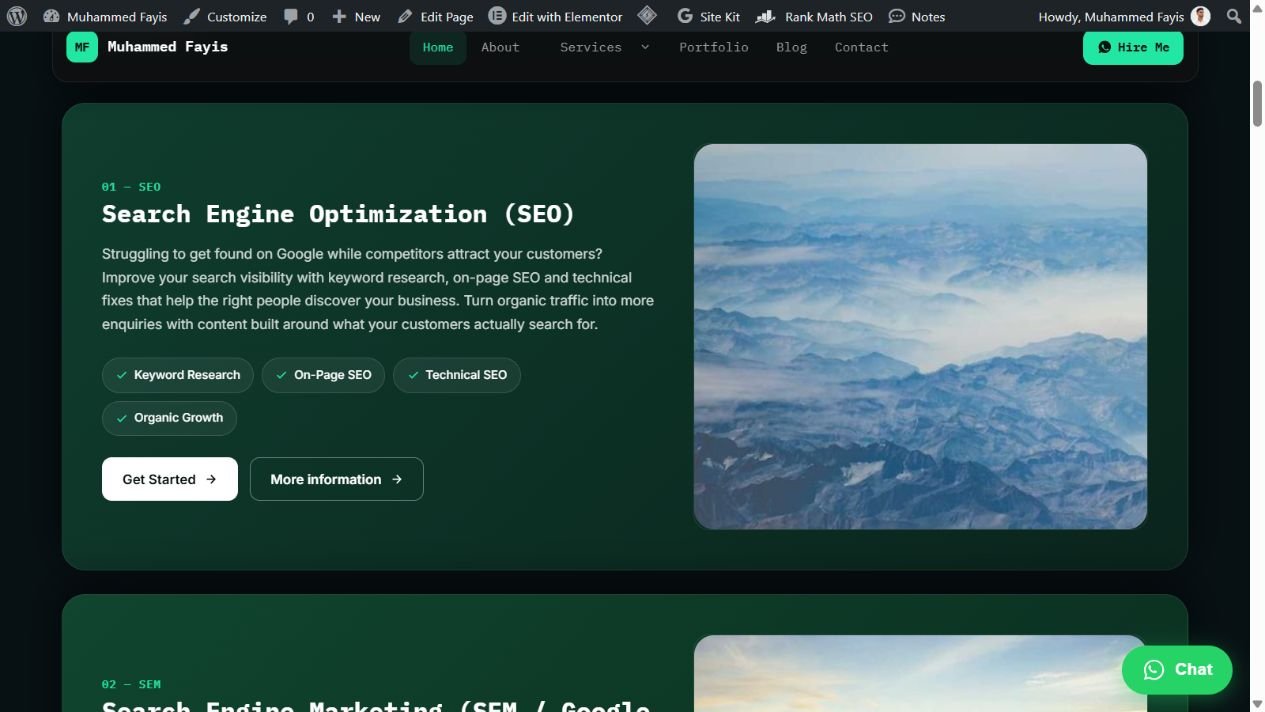
5. Adding Clearer Links to My Service Cards
On my Services page, I wanted visitors to have two clear choices. They could contact me immediately or read more about a particular service.
I asked Codex to keep “Get Started” and link it to Contact. Then, I requested a second “More information” button linking to the specific service page.
The update covered ten service cards, followed by checks of the destinations and mobile layout. It was a straightforward internal-linking and navigation improvement.
These examples show the changes I made and checked. I haven’t measured their effect on rankings or traffic.
How to Write a Prompt That Produces a Useful Edit
“Optimise my website” leaves too much open. A better prompt explains the current problem and gives the assistant a clear boundary.
Include the target page, intended audience, approved information, design reference and success check. Also state whether you want suggestions, draft changes or an update to a published page.
Inspect this service page first. Create a separate draft for review, keeping the existing design and using only the approved copy below. Suggest relevant internal links and check the mobile layout. Explain any work your available tools cannot perform.
What Should You Check Before Publishing?
An edit is finished when it produces the expected result. A success message alone cannot establish that.
- Content: Check facts, headings, grammar and the offer being described.
- Layout: Review desktop and mobile, including spacing, buttons and text wrapping.
- Links: Open the destinations and confirm that each matches its label.
- SEO settings: Inspect the title, description, canonical URL and indexing settings where relevant.
- Schema: Validate the actual page output after making changes.
- Forms: Submit a test enquiry and confirm the expected notification arrives.
After publication, use Search Console and analytics to review search performance and visitor actions. Record changes so you can interpret later results with some context.
A completed edit does not prove a ranking improvement. Likewise, a cleaner form layout does not prove email delivery. Measure the outcome you actually care about.
Frequently Asked Questions
Does Elementor MCP Replace an SEO Plugin?
No. Elementor MCP exposes supported Elementor abilities. Metadata, schema and redirect management still depend on the tools responsible for those functions.
Can Codex Edit Every Existing Elementor Page?
Not through native Elementor MCP editing alone. Check whether the page uses supported Atomic elements or older widgets before choosing the editing route.
Will Elementor MCP Improve Google Rankings?
The connection itself does not guarantee better rankings. Its value comes from helping you implement useful changes that you can inspect and measure.
Can You Use the Same Workflow on Another Website?
Yes, where the website meets the requirements and you have permission to manage it. Each site needs its own authorised connection and compatibility check.
Where Should You Start?
Choose one page and one problem. Give Codex enough context to understand the task, then review what its available tools can do.
Using Elementor MCP for SEO becomes useful when the work stays specific. Clear instructions, suitable access and proper checks matter more than the size of the request.
If you are unsure which changes deserve attention first, a digital marketing consultation can help you prioritise the website work around your business goals.